
Hosting an INXPO Event on Brightcove Live
Introduction
INXPO is a video streaming platform, for creating TV-style event experiences. To reach a larger audience, you can leverage Brightcove Live to stream your event.
Steps
Follow these steps to host a meeting to Brightcove Live:
- In Studio, create a
- Once you create the live channel, copy the Input URL and Input Stream Name from the Control Room.
- Streaming RTMP URL - Input URL (found in the NextGen Live Control Room Input Source panel)
- Streaming Key - Input Stream Name (In NextGen Live, the default Input Stream Name is "blive")
- Click Embed on Web to embed the player for this live event in your website/intranet page, and note the page URL.
Configure the streaming session
With the Streaming RTMP URL and Streaming Key you must configure them on the INXPO producer tool.
- Go to the INXPO producer tool and click the 3 dots icon to reach the Output Details section.
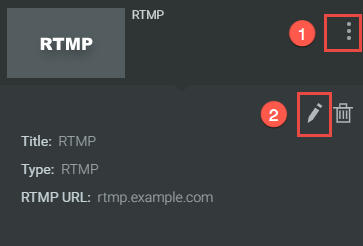
- Click the pencil icon.
- Fill the following details with your Brightcove Live event credentials.
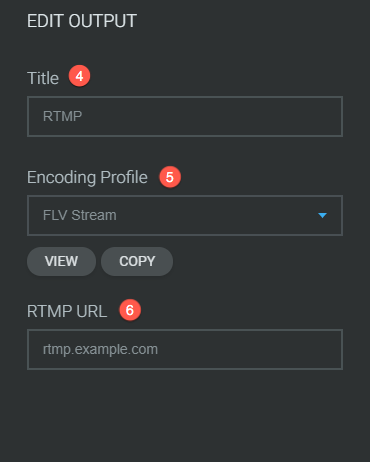
- In the Title field, add the Brightcove Live Stream Name.
- In the Encoding Profile field, select the default encoding profile which settings define how the encoder compresses and delivers the webcast to attendees.
- In the RTMP URL field, insert the Brightcove Input URL.
- Click the OK button.